Newsletter Generator: From a Google Sheets Row to a Draft Campaign
A Make scenario that turns one row of a Google Sheets newsletter planner into a finished draft campaign in Campaign Monitor, in one of three layouts chosen by the editor.
Make Automations
Works with
Make
Google Sheets
Campaign Monitor
Purpose
A publishing business sends a regular email newsletter with news articles, sponsored posts, a destination report and a podcast episode. Building each issue by hand in the email tool means copying titles, images, excerpts and links into a template, block by block. This Make scenario lets the editors plan the whole issue in a Google Sheet and creates the campaign automatically.
The Solution
An editor fills in one row of the newsletter sheet. It holds the titles, images, excerpts, links and category labels for three news posts and three sponsored posts, plus the destination report and the podcast episode.
The editor picks a template number (1, 2 or 3) and sets the Create Newsletter cell to “Create”.
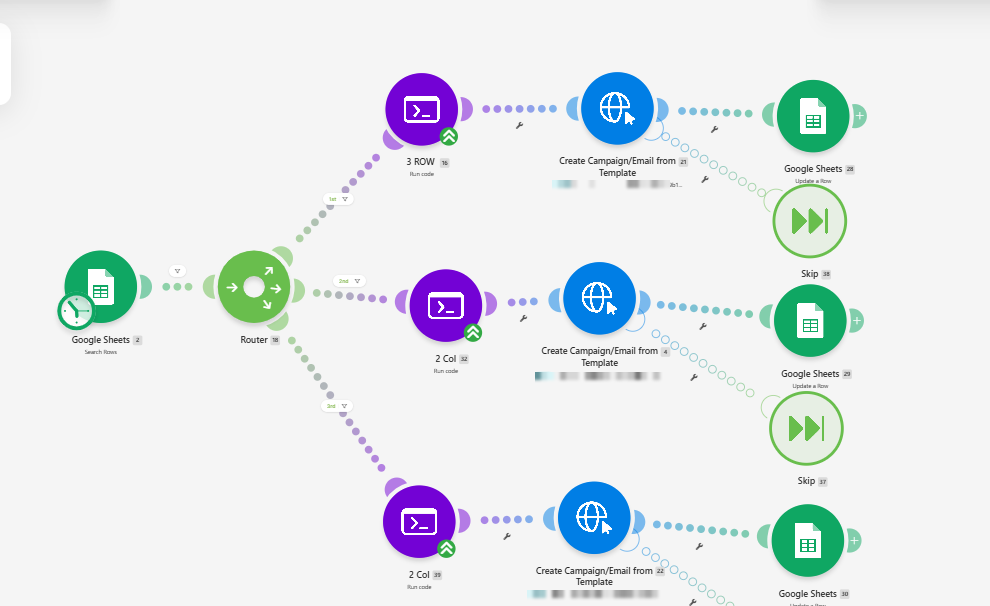
On its schedule, the scenario searches the sheet for a row marked Create and takes one row at a time.
A router checks that a row was found and sends it down one of three routes, depending on the template number.
Each route has a code step that builds the full newsletter from the row. The first route builds the three-row layout. The other two build the mixed layout, with two posts side by side and one centred below, each with its own template.
An HTTP step sends the result to the Campaign Monitor API, which creates a draft campaign from the chosen template.
A final Google Sheets step updates the row with “Done”.
The Make scenario: Google Sheets searches for a row marked Create, a router picks one of three templates, a code step builds the newsletter content, an HTTP call creates the campaign from the template, and Google Sheets updates the row. A Skip step on each route handles errors.
What the Code Builds
The newsletter is built section by section: a top banner, the news posts, a banner, the sponsored posts, the destination report, the podcast episode and a second banner.
Each news and sponsored post gets its image, a category label, its title and excerpt, and a button (Read More or Learn More) linked to the post.
The destination report has an image, a badge, the destination name, a description and a Read Full Report button. The podcast block has an image, a date line, the title, a description and a Listen Now button.
Gaps are filled in for the editors. A missing image on a news or sponsored post is replaced by a default image, a missing link points to the main website, and every issue gets a unique campaign name with a timestamp.
The subject line and the header date default to the current month and year, and the sender details and subscriber list are set in the same step.
Good to Know
The editors work only in the sheet. All copy, images and links live there, so nobody has to open Make or edit a template to produce an issue.
The campaign is created as a draft in Campaign Monitor, so the team can check it there before it is sent.
If Campaign Monitor returns an error, the scenario skips that run instead of stopping with an error.
 Make Automations